 Linkedlytics
Claude connection guide
Connect Claude to your Linkedlytics data.
Use a remote custom connector to bring your authorised Linkedlytics reporting data into Claude. Start with a read-only workflow, then grant additional access only when the work calls for it.
By Linkedlytics · Reviewed
01
Before you connect
You need a Linkedlytics account with access to the relevant workspace and data. You also need permission to add a remote custom connector in Claude; organisation administrators can control availability.
This guide covers Claude’s hosted remote connector flow. It does not require a local MCP process or a desktop configuration file. Client instructions were checked against Anthropic’s documentation on 17 October 2026.
02
Connect Claude
In Claude, open Customize → Connectors and add a custom connector named Linkedlytics. Enter the public server address below. In a managed organisation, an owner may need to add the connector before members can connect.
https://www.linkedlytics.com/api/mcp
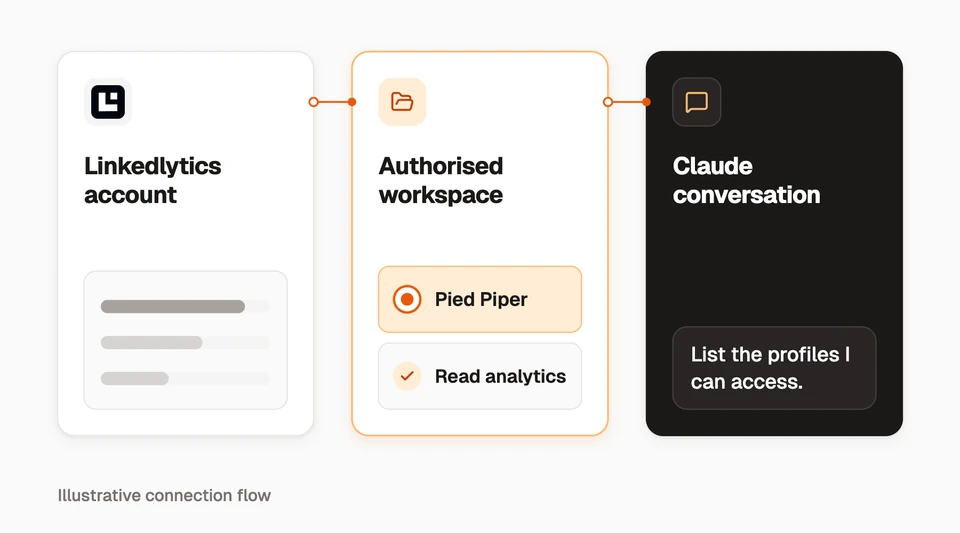
Use sign-in authentication. Where Claude asks how to identify the OAuth client, choose automatic registration. Sign in to Linkedlytics, review the requested workspace access, and approve the capabilities you intend to use. Enable the connector in the conversation.
03
Check your connection
Ask the assistant to list the workspaces available through Linkedlytics, then select the correct workspace and list its profiles. This confirms the context before analysis.
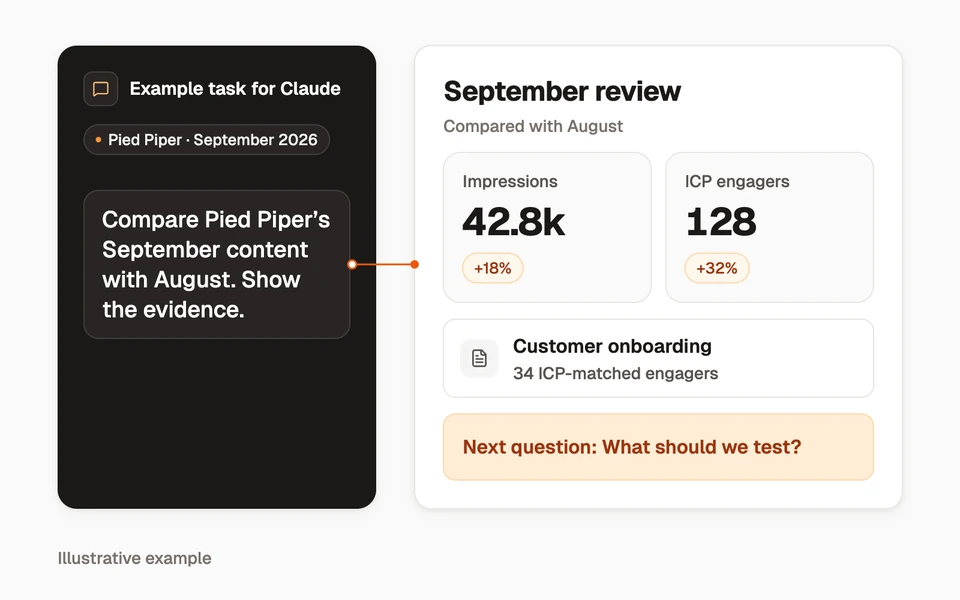
Next, ask it to compare two explicit date ranges for one profile. If there is no collected data, it should explain what is missing rather than invent a result.
04
Choose the right permissions
A workspace connection uses your Linkedlytics sign-in and the workspaces and capabilities you approve. When more than one workspace is available, identify the intended client before requesting an operation.
Some settings, drafting, scheduling, and calendar tools currently use the separate single-workspace token connection. They are not included in the newer workspace-grant connection. Check the tool reference before planning a publishing workflow.
- Begin with reporting access for a read-only analysis.
- Review permissions before enabling actions that change or share information.
- Remove access in Linkedlytics Settings → MCP (AI connections) when it is no longer needed.
05
Troubleshoot your connection
A successful sign-in does not mean every tool or profile is available. Check the connection context before retrying.
| Symptom | What to check |
|---|---|
| The connector option is missing | Your AI account’s current plan and workspace administrator permissions. |
| No workspace or profile appears | The Linkedlytics account used to sign in and its granted workspaces. |
| A period is empty | Profile selection, date range, collection history, and connection freshness. |
| A tool is unavailable | Connection type, capability grants, and product entitlements. |
| A write needs review | The intended client, target object, operation details, and approval request. |
| Connection fails after a change | Re-authorise the connection if access changed; contact support with the error, not a secret token. |
Questions, answered
Is this a built-in Claude LinkedIn connector?
No. You add Linkedlytics as a custom remote connector. Claude then works with data and tools provided by your Linkedlytics connection.
How do I remove access?
Remove the connection or its workspace access in Linkedlytics Settings → MCP (AI connections), and disconnect the connector in Claude. For a separate API-token connection, delete that token in Linkedlytics.
Bring your data into Claude
Start your Linkedlytics trial, then follow the setup guide to connect Claude to your authorised workspace data.
Start a trial to set up your Claude connection7-day free trial