 Linkedlytics
LinkedIn MCP tools
Explore your LinkedIn MCP tools.
Explore the tools your AI assistant can use to analyse content, understand your audience, prepare reports, and manage supported workflows. Start with what each tool set is for, then open the individual tools when you need more detail.
By Linkedlytics · Reviewed
Choose the job you want to do
Each tool set gives your assistant a different way to help. The examples below describe requests you can make, not completed actions. Available tools depend on your connection, permissions, and product access.
Workspace selection
Choose which client you are working on before asking for an analysis. These tools show the workspaces and profiles you can access, compare selected client reports, and check the result of an earlier action. Each client’s results stay separate.
Example request
“Show the client workspaces I can access and the profiles available in each.”
View 3 individual tools
agency_action_status
Read a saved action result or authenticated review link. Never approves or repeats an action. Reuse the original request_key when retrying a write.
- Access
- Workspace connection
- Effect
- Read connection context
agency_compare_reports
Read 2–10 explicitly selected client reports for the same dates. Results remain separate; do not sum unique audiences or average rates. Reports must first be discovered in their respective workspaces. Unavailable clients are marked incomplete.
- Access
- Workspace connection
- Effect
- Read connection context
agency_list_workspaces
List only explicitly granted clients, their profiles, current capabilities, and stored data status. Use workspace_ref on every client tool call. This never changes a global active workspace.
- Access
- Workspace connection
- Effect
- Read connection context
Content analytics
Find out what your LinkedIn content is doing. Compare periods or profiles, rank posts by a supported metric, search topics and comments, and inspect the people engaging with a post. Use the results to decide which content deserves a closer look.
Example request
“Compare this month with last month and show the posts behind the biggest changes.”
View 13 individual tools
content_audience_engagers
Return the most engaged audience members with engagement type and ICP-aware sorting.
- Access
- reporting.read
- Effect
- Read data
content_compare_periods
Compare two periods for aggregate content performance and compute absolute and percentage deltas.
- Access
- reporting.read
- Effect
- Read data
content_compare_profiles
Side-by-side comparison of 2-10 profiles. Returns the same aggregate stats (totals, averages, engagement rate, score) for each profile so you can compare Brett vs. Chad vs. Marisa in one call instead of stitching together separate requests.
- Access
- reporting.read
- Effect
- Read data
content_engagement_breakdown
Get engagement totals and audience breakdown for a specific post ID within the authenticated organization.
- Access
- reporting.read
- Effect
- Read data
content_get_post_comments
Get the full LinkedIn comment thread for a specific post, returned as a nested tree (top-level comments with their replies). Use this to read, summarize, or answer questions about what people said on a post.
- Access
- reporting.read
- Effect
- Read data
content_list_posts
List content posts with analytics metrics and safe pagination across date/profile/tag filters.
- Access
- reporting.read
- Effect
- Read data
content_list_profiles
List LinkedIn profiles tracked by this organization. Returns profile IDs, names, types, headlines, and post counts. Use this to discover available profiles before calling profile-specific tools.
- Access
- reporting.read
- Effect
- Read data
content_list_saved_views
List saved content views configured by the organization for the content table.
- Access
- reporting.read
- Effect
- Read data
content_profile_stats
Pre-aggregated performance summary for a specific profile (or all profiles if no profileId). Returns totals (impressions, reactions, comments, reposts, engagement, saves, video views, followers gained) and per-post averages with a content-type breakdown. Much faster than manually summing content_list_posts.
- Access
- reporting.read
- Effect
- Read data
content_search_comments
Search LinkedIn comments across all synced posts in the organization. Filter by text, post, profile, author name, network distance, date range, or reaction count. Returns flat comment rows with the post context so you can cite which post the comment was on.
- Access
- reporting.read
- Effect
- Read data
content_search_posts
Search post content by keyword or phrase (case-insensitive). Use this to find posts mentioning specific topics, people, or keywords — e.g. 'show me all posts where Brett mentioned AI'. Supports date, profile, and tag filters.
- Access
- reporting.read
- Effect
- Read data
content_tags_and_themes
List content tags/themes used across the organization or within a specific profile.
- Access
- reporting.read
- Effect
- Read data
content_top_posts_by_metric
Return top posts ranked by a supported metric such as engagement_rate, impressions, comments, or score.
- Access
- reporting.read
- Effect
- Read data
Audience insights
Understand who is engaging and how they fit your audience criteria. Find and filter observed audience members, open their engagement details, and organise them with tags. Selected members can also become a draft outreach campaign when you approve that action; creating a draft does not launch it.
Example request
“Find audience members who match our criteria and show their engagement history.”
View 6 individual tools
audience_bulk_tags
Preview and confirm adding tags to a fixed set of audience members.
- Access
- Single-workspace token only
- Effect
- Tool-specific access and confirmation
audience_create_campaign
Preview and confirm creating a draft outreach campaign from selected audience member IDs. Resolves profiles server-side, uses existing qualification/DNC/dedup, and never launches.
- Access
- Single-workspace token only
- Effect
- Tool-specific access and confirmation
audience_get_member
Read the audience profile and engagement detail for a member ID returned by audience_query.
- Access
- reporting.read
- Effect
- Read data
audience_list_tags
List valid default and custom audience tags.
- Access
- reporting.read
- Effect
- Read data
audience_query
Query audience using the same filters, facets, sort, and aggregation as /audience. Returns stable member IDs. Filter names match the audience API; tags uses its JSON filter string. Never enriches or writes.
- Access
- reporting.read
- Effect
- Read data
audience_update_tags
Replace tags on one audience member using existing tag validation and propagation.
- Access
- Single-workspace token only
- Effect
- Tool-specific access and confirmation
Reports and sharing
Turn your analysis into a saved client report. Find existing reports, read their results, create or duplicate a report, organise its views, and save an edited summary. Separate sharing tools control who can open a report link, what they can see, and when the link expires.
Example request
“Read this client’s monthly report and draft a summary of the results and missing data.”
View 16 individual tools
reports_create
Create and save a named report using the app template service. Does not collect data or publish it. Return the link immediately; use reports_update or reports_upsert_view to configure filters.
- Access
- reports.write
- Effect
- Changes workspace data
reports_create_share
Create an externally accessible report link after review. Audience and connection tables are hidden by default; explicitly discuss visibility with the user. Use expiration. Filters freeze the chosen presentation, while report data remains live.
- Access
- reports.share
- Effect
- Changes or external actions · review required
reports_delete_view
Delete one saved report view after review. Does not delete the report.
- Access
- reports.write
- Effect
- Changes workspace data
reports_duplicate
Duplicate a report into this workspace, with saved views, summary and optional new name. Sharing links are not copied.
- Access
- reports.write
- Effect
- Changes workspace data
reports_export
Prepare a private authenticated download link for all matching report post rows as CSV. Use the same filters as the displayed report. The user clicks to download; no public file is stored. For PDF, open the report and use browser Print → Save as PDF.
- Access
- reporting.read
- Effect
- Read data
reports_get
Read a named report with its saved filters, period KPIs, comparison values, selected profiles and a page of posts. Totals cover all matching posts, never just the page. Does not generate summaries or share links.
- Access
- reporting.read
- Effect
- Read data
reports_list
Find named reports. If names are ambiguous, present matching IDs for selection. Share access lists only its authorized report.
- Access
- reporting.read
- Effect
- Read data
reports_list_shares
Read current report share links and their visibility/expiration settings. Never creates a link.
- Access
- reports.share
- Effect
- Read data
reports_list_templates
Read the same report templates offered by the app. Choose the template closest to the requested outcome.
- Access
- reporting.read
- Effect
- Read data
reports_list_views
Read saved report views and the saved summary without computing analytics.
- Access
- reporting.read
- Effect
- Read data
reports_prepare_newsletter
Find or prepare the app’s dedicated newsletter performance report using the native service. Requires collected newsletter/article data. Can scope it to a verified newsletter; never imports subscribers or collects data.
- Access
- reports.write
- Effect
- Changes workspace data
reports_revoke_share
Revoke one previously listed share link after review. The recipient can no longer use that link.
- Access
- reports.share
- Effect
- Changes workspace data
reports_save_summary
Save a plain-text summary as the report’s editable summary blocks. Read report analytics before drafting conclusions. Replaces existing summary after review.
- Access
- reports.write
- Effect
- Changes workspace data
reports_update
Update report presentation, goals and default filters. Read it first. Only supplied fields change. Existing app validation applies. Never changes organization or creator.
- Access
- reports.write
- Effect
- Changes workspace data
reports_update_share
Update an existing share link’s expiration and visibility after review. Read and identify the specific link first. Never silently expose audience or connections.
- Access
- reports.share
- Effect
- Changes or external actions · review required
reports_upsert_view
Save or update a named report view. Filters are the same URL parameters the app reads. Does not change other views.
- Access
- reports.write
- Effect
- Changes workspace data
Campaigns and replies
Prepare outreach and manage the conversations it creates. Review campaign performance and readiness, organise prospects, configure messages and follow-ups, and draft replies. Collecting prospects, launching a campaign, and sending a reply are distinct actions with their own access and review requirements.
Example request
“Show which campaigns need attention and explain what is blocking them, without changing anything.”
View 42 individual tools
campaigns_add_dnc
Add a campaign do-not-contact entry using the same suppression list as the queue.
- Access
- campaigns.operate
- Effect
- Changes or external actions · review required
campaigns_add_manual_prospects
Add explicit LinkedIn profile URLs to a campaign queue using the same DNC, duplicate, profile visit, and qualification pipeline as the app.
- Access
- campaigns.operate
- Effect
- Changes or external actions · review required
campaigns_add_prospects_from_search
Search LinkedIn or Sales Navigator with the campaign sender account, visit/qualify each result, and add approved prospects to the campaign queue.
- Access
- campaigns.collect
- Effect
- Changes or external actions · review required
campaigns_bulk_update_prospects
Preview and confirm bulk prospect actions. Filters resolve to fixed IDs; execution never expands the approved selection.
- Access
- campaigns.operate
- Effect
- Changes or external actions · review required
campaigns_cancel_pending_reply
Cancel a scheduled automatic reply before a human reply. Refuses while an automatic send is processing.
- Access
- campaigns.operate
- Effect
- Changes or external actions · review required
campaigns_clone_campaign
Clone into a draft with automatic replies disabled.
- Access
- campaigns.draft
- Effect
- Changes workspace data
campaigns_content_teams
Admin pilot: inspect company publishing evidence, preview or collect a saved Active content teams source, process checkpoints, review recipients, dismiss, refresh or retry. Preview never queues. List returns opportunity versions required by review actions.
- Access
- Single-workspace token only
- Effect
- Tool-specific access and confirmation
campaigns_create_campaign
Create a draft campaign using an already campaign-enabled sender. Never launches or enables automatic replies. Resolve the sender with content_list_profiles.
- Access
- campaigns.draft
- Effect
- Changes workspace data
campaigns_create_from_template
Create a draft with the same ICP Engagers, Hiring Signal or Network Enrichment recipe as the wizard. Saves the source paused, so recurring collection cannot start before a separate review. Never launches. Requires a connected, campaign-enabled sender. No automatic replies.
- Access
- campaigns.draft
- Effect
- Changes workspace data
campaigns_export_prospects
Return the selected prospects as structured export rows. No mutation.
- Access
- campaigns.read
- Effect
- Read data
campaigns_generate_draft
Generate or refine an app Reply Assist suggestion with optional alternatives and approach. Never sends. If disabled, explain the limitation; do not enable Reply Assist without a separate user request.
- Access
- campaigns.operate
- Effect
- Changes or external actions · review required
campaigns_get_account_health
Read stored LinkedIn connection/auth health for a sender profile, independent of campaign status. No provider call, reconnect, or sync. Stored state can lag provider changes; this is not a live authentication test.
- Access
- campaigns.read
- Effect
- Read data
campaigns_get_account_stats
Aggregate all campaigns for one sender profile, including paused/archived campaigns. Resolve profile_id using content_list_profiles. Optional dateFrom/dateTo scope the funnel; rates are recomputed from summed counts, not averaged.
- Access
- campaigns.read
- Effect
- Read data
campaigns_get_campaign_workflow
Read operational queue counts, saved source IDs/configs, and recent source runs. Works even if the sender is disconnected or not synced. Use sources[].id as run.source_id in campaigns_run_source to reuse the exact audience.
- Access
- campaigns.read
- Effect
- Read data
campaigns_get_reply
Read a complete conversation, app suggestion, effective playbook, and pending automatic send before refining or sending.
- Access
- campaigns.read
- Effect
- Read data
campaigns_get_reply_assist
Read effective Reply Assist playbook, mode, daily limit, and booking settings.
- Access
- campaigns.read
- Effect
- Read data
campaigns_get_stats
Read campaign stats and dashboard funnel. Supply both dateFrom/dateTo (YYYY-MM-DD) for date-scoped funnel; omit for lifetime. stats and queue remain current-state.
- Access
- campaigns.read
- Effect
- Read data
campaigns_list_campaigns
List campaigns in this organization with sender profile, campaign status, and queue totals. Use this first to resolve a campaign_id.
- Access
- campaigns.read
- Effect
- Read data
campaigns_list_dnc
List campaign do-not-contact entries.
- Access
- campaigns.read
- Effect
- Read data
campaigns_list_events
Read-only paginated activity and send diagnostics. Optional dateFrom/dateTo filter event timestamps; no server confirmation is required.
- Access
- campaigns.read
- Effect
- Read data
campaigns_list_prospects
List, search, and filter prospects in a campaign queue.
- Access
- campaigns.read
- Effect
- Read data
campaigns_list_replies
Read the prioritized inbox across all campaigns, or one campaign. Includes current app suggestions; never generates. Triage recommendations are read-only; generate drafts only when requested. Distinguish app suggestions from assistant edits.
- Access
- campaigns.read
- Effect
- Read data
campaigns_list_search_parameters
Resolve LinkedIn search parameter IDs (for example LOCATION, INDUSTRY, COMPANY, REGION) using the campaign sender's connected LinkedIn account.
- Access
- campaigns.collect
- Effect
- Changes or external actions · review required
campaigns_list_sources
Read saved campaign collection sources, including each id, source type and config. Pass sources[].id as run.source_id to campaigns_run_source to refill the same audience. Archived sources are excluded.
- Access
- campaigns.read
- Effect
- Read data
campaigns_list_templates
Read all campaign wizard choices, template defaults and source recipes. Templates produce drafts; collection and launch are separate actions.
- Access
- campaigns.read
- Effect
- Read data
campaigns_prepare_replies
Prepare app-generated suggestions when the user requests reply drafts. Reuses fresh suggestions, generates missing ones, never sends. Each item reports success, ineligibility, limits, or escalation independently.
- Access
- campaigns.operate
- Effect
- Changes or external actions · review required
campaigns_preview_message
Render exact saved or proposed message text using an authorized prospect’s saved personalization, or clearly labeled example values. Never saves, fetches LinkedIn or sends. Missing required variables are reported.
- Access
- campaigns.read
- Effect
- Read data
campaigns_readiness
Check saved campaign sender eligibility, sources, workflow, schedule and current prospect stats without external calls or writes. Highlights blockers; does not launch or collect.
- Access
- campaigns.read
- Effect
- Read data
campaigns_remove_prospect
Soft-remove a prospect from a campaign queue by marking it skipped and clearing scheduler claim fields.
- Access
- campaigns.operate
- Effect
- Changes or external actions · review required
campaigns_run_source
Refill from a saved source: first call campaigns_list_sources, then pass run: { source_id: <sources[].id>, max_count: 100 }. No source type/config is needed. Saved audience and review criteria are preserved. This collects prospects; an active campaign can subsequently send outreach to them. Ad-hoc source/config runs are also supported.
- Access
- campaigns.collect
- Effect
- Changes or external actions · review required
campaigns_search_linkedin_profiles
Preview LinkedIn people search results with the campaign sender's connected LinkedIn account. Accepts a copied search_url or structured Unipile search parameters.
- Access
- campaigns.collect
- Effect
- Changes or external actions · review required
campaigns_send_reply
Preview exact recipient and message. Obtain explicit approval, then repeat unchanged with confirmation_token. Cancel pending automatic replies before sending. Changed conversation or playbook requires a new preview.
- Access
- campaigns.operate
- Effect
- Changes or external actions · review required
campaigns_test_qualification
Test one LinkedIn prospect against saved or proposed qualification rules. Calls provider/AI services after review; does not send or add to campaign. Reports evidence, decision and confidence.
- Access
- campaigns.collect
- Effect
- Changes or external actions · review required
campaigns_test_source
Test a supported LinkedIn or Sales Navigator source with the same app diagnostics. Calls the integration and consumes allowance after review; does not enqueue prospects or launch.
- Access
- campaigns.collect
- Effect
- Changes or external actions · review required
campaigns_transfer_prospects
Preview and confirm moving prospects into another campaign. Uses existing DNC and deduplication behavior.
- Access
- campaigns.operate
- Effect
- Changes or external actions · review required
campaigns_triage_reply
Apply an inbox decision, outcome, or intent correction using existing UI semantics. Does not send. Use undo with the returned event ID.
- Access
- campaigns.operate
- Effect
- Changes or external actions · review required
campaigns_update_prospect
Edit a campaign prospect's safe fields such as status, qualification override fields, display fields, and notes.
- Access
- campaigns.operate
- Effect
- Changes or external actions · review required
campaigns_update_reply_assist
Configure Reply Assist. enabled=true defaults to Suggest. Omitted playbook fields are preserved. Auto and automatic booking require confirmation.
- Access
- campaigns.operate
- Effect
- Changes or external actions · review required
campaigns_update_settings
Update campaign name, qualification rules, enrichment context, notification settings, source discovery profile, limits and tracking using the app service. Launch and Reply Assist use separate reviewed tools. Read current configuration first.
- Access
- campaigns.draft
- Effect
- Changes workspace data
campaigns_update_status
Launch/resume requires preview and explicit confirmation. Pause is immediate. Existing launch guards remain enforced.
- Access
- campaigns.operate
- Effect
- Changes or external actions · review required
campaigns_update_workflow
Persist messages, delays, limits, and follow-ups with the same validation as Workflow.
- Access
- campaigns.draft
- Effect
- Changes workspace data
campaigns_upsert_source
Configure a collection source through the existing source operation.
- Access
- campaigns.draft
- Effect
- Changes workspace data
Drafts and publishing
Move a content idea towards a published post. Create and edit drafts, attach media, see which connected profiles can publish, and schedule or unschedule posts. Publishing immediately requires confirmation. These tools currently use the single-workspace token connection.
Example request
“List the drafts for this profile and show which ones are scheduled.”
View 10 individual tools
scheduling_attach_media_from_url
Download a media file from a public URL and attach it to a draft post. Supports images (JPEG, PNG, GIF, WebP), videos (MP4, MOV, WebM), and documents (PDF, PPT, DOC). IMPORTANT: Ask the user to provide a direct image/file URL. Good sources: Unsplash (use unsplash.com/photos/PHOTO_ID/download), Pexels direct links, images.unsplash.com URLs, i.imgur.com URLs, or any direct link ending in .jpg/.png/.mp4 etc. Avoid Wikimedia thumbnail URLs and other sites that block automated downloads.
- Access
- Single-workspace token only
- Effect
- Tool-specific access and confirmation
scheduling_create_drafts
Create 1-10 draft posts at once. Each post requires a profile_id (use scheduling_list_postable_profiles to find one) and text content. Returns the created post IDs and text previews.
- Access
- Single-workspace token only
- Effect
- Tool-specific access and confirmation
scheduling_delete_draft
Delete a draft or scheduled post and clean up any attached media files. Cannot delete posts that are currently publishing.
- Access
- Single-workspace token only
- Effect
- Tool-specific access and confirmation
scheduling_get_draft
Get full details of a specific draft or scheduled post, including complete text, attachments, mentions, and profile info.
- Access
- Single-workspace token only
- Effect
- Tool-specific access and confirmation
scheduling_list_drafts
List drafts and scheduled posts for the organization with optional status and profile filters. Returns text previews, status, scheduled time, and attachment counts.
- Access
- Single-workspace token only
- Effect
- Tool-specific access and confirmation
scheduling_list_postable_profiles
List LinkedIn profiles that have an active LinkedIn connection and can publish posts. Use this to resolve a person's name to a profile_id before creating drafts.
- Access
- Single-workspace token only
- Effect
- Tool-specific access and confirmation
scheduling_publish_now
Immediately publish a post to LinkedIn. REQUIRES DOUBLE CONFIRMATION: first call without confirmation_token to get a confirmation prompt, then call again with the returned confirmation_token to actually publish.
- Access
- Single-workspace token only
- Effect
- Tool-specific access and confirmation
scheduling_schedule_posts
Schedule 1-10 draft posts for future publishing. Each item needs a post_id and scheduled_for (ISO 8601 datetime, must be in the future). Posts must have non-empty text and be in a schedulable status (draft, approved, failed, or already scheduled).
- Access
- Single-workspace token only
- Effect
- Tool-specific access and confirmation
scheduling_unschedule_posts
Move 1-10 scheduled posts back to draft status, clearing their scheduled time.
- Access
- Single-workspace token only
- Effect
- Tool-specific access and confirmation
scheduling_update_draft
Update the content of an existing draft post. Cannot update posts that are currently publishing or already published.
- Access
- Single-workspace token only
- Effect
- Tool-specific access and confirmation
Content calendar
Give your content plan context with launches, conferences, and other important dates. These tools list, create, update, or remove event markers alongside your posts. Calendar markers do not publish posts or book meetings. They currently use the single-workspace token connection.
Example request
“Show the launches and events on our content calendar next month.”
View 4 individual tools
calendar_create_event
Create a calendar event — a contextual marker on the content calendar (e.g. 'Product Launch', 'Conference Talk', 'Yacht Party'). Events appear as all-day items on the calendar to provide context for surrounding content. Supports optional end_date for multi-day events and a color picker.
- Access
- Single-workspace token only
- Effect
- Tool-specific access and confirmation
calendar_delete_event
Delete a calendar event from the content calendar.
- Access
- Single-workspace token only
- Effect
- Tool-specific access and confirmation
calendar_list_events
List calendar events for the organization. These are contextual markers (conferences, launches, parties) that live on the content calendar alongside posts. Optionally filter by date range.
- Access
- Single-workspace token only
- Effect
- Tool-specific access and confirmation
calendar_update_event
Update an existing calendar event's title, description, dates, or color.
- Access
- Single-workspace token only
- Effect
- Tool-specific access and confirmation
Audience and content settings
Define the criteria behind your analysis. Review or adjust your ideal customer profile, content tags, and the metrics used in performance scoring. Changes affect how the workspace organises or assesses data, so review the current settings first. These tools currently use the single-workspace token connection.
Example request
“Explain our current audience criteria and how the content performance score is configured.”
View 11 individual tools
settings_create_custom_tag
Create a new custom post tag for the organization. Custom tags extend the 15 default content pillars with organization-specific categories. The tag is automatically added to the enabled tags list.
- Access
- Single-workspace token only
- Effect
- Tool-specific access and confirmation
settings_create_icp_definition
Create or upsert an ICP definition. If an ICP with the same name already exists for this org, it will be updated. Criteria fields: keywords_include and keywords_exclude. Keywords match headlines and parsed titles. Setting is_default to true will unset the default flag on other definitions.
- Access
- Single-workspace token only
- Effect
- Tool-specific access and confirmation
settings_delete_custom_tag
Delete a custom post tag by its ID. This removes the tag from the organization's config and strips it from all posts that currently have it. Default tags cannot be deleted.
- Access
- Single-workspace token only
- Effect
- Tool-specific access and confirmation
settings_delete_icp_definition
Delete an ICP definition by ID. Deleting the active definition queues a background update to clear its historical matches.
- Access
- Single-workspace token only
- Effect
- Tool-specific access and confirmation
settings_get_scoring_config
Read the organization's post scoring configuration. Returns which metrics are enabled and their weights used to compute the percentile-based Insights Performance Score.
- Access
- Single-workspace token only
- Effect
- Tool-specific access and confirmation
settings_get_tagging_config
Read the organization's post tagging configuration. Returns enabled tags, custom prompt, tag name mappings, custom tags, disabled tags, and default tag customizations.
- Access
- Single-workspace token only
- Effect
- Tool-specific access and confirmation
settings_list_icp_definitions
List all ICP (Ideal Customer Profile) definitions for the organization. Each ICP definition contains matching criteria (titles, seniority, companies, keywords) used to score audience members.
- Access
- Single-workspace token only
- Effect
- Tool-specific access and confirmation
settings_update_icp_definition
Update an existing ICP definition by ID. Supply only the fields you want to change — omitted fields are left unchanged. Criteria fields: keywords_include and keywords_exclude only.
- Access
- Single-workspace token only
- Effect
- Tool-specific access and confirmation
settings_update_post_tags
Update the content pillar tags for a specific post. Supply the post ID and an array of 1–5 tag names. Tags must be from the organization's enabled tags (use settings_get_tagging_config to see valid tag names).
- Access
- Single-workspace token only
- Effect
- Tool-specific access and confirmation
settings_update_scoring_config
Update the organization's post scoring configuration. Supply partial or full metric overrides — each metric has an 'enabled' flag and a 'weight' (0-10). Omitted metrics keep their current values. Note: this does not recalculate existing post scores; use the web UI to trigger a recalculation.
- Access
- Single-workspace token only
- Effect
- Tool-specific access and confirmation
settings_update_tagging_config
Update the organization's post tagging configuration. You can change enabled tags, the custom AI prompt, tag name mappings, disabled tags, and default tag customizations. Omitted fields keep their current values. Note: this does not retag existing posts; use the web UI to trigger a bulk retag.
- Access
- Single-workspace token only
- Effect
- Tool-specific access and confirmation
Saved discovery searches
Maintain searches you have already saved for collecting relevant profiles. Update their filters or connected profile, and set or stop recurring collection. Changing a search does not run it immediately; scheduled collection needs review and can use your provider allowance.
Example request
“Stop recurring collection for this saved search after reviewing its current schedule.”
View 2 individual tools
discovery_schedule_search
Set or stop recurring third-party collection. Runs can consume provider allowance. Requires review, an explicit timezone and a valid local time for enabled schedules.
- Access
- Single-workspace token only
- Effect
- Tool-specific access and confirmation
discovery_update_search
Update a saved third-party search name, connected discovery profile, search filters or active state. Preserves filters not supplied. Does not run collection immediately; activating a scheduled search allows future scheduled collection. To schedule collection use discovery_schedule_search.
- Access
- Single-workspace token only
- Effect
- Tool-specific access and confirmation
01
Choose the right permissions
A workspace connection uses your Linkedlytics sign-in and the workspaces and capabilities you approve. When more than one workspace is available, identify the intended client before requesting an operation.
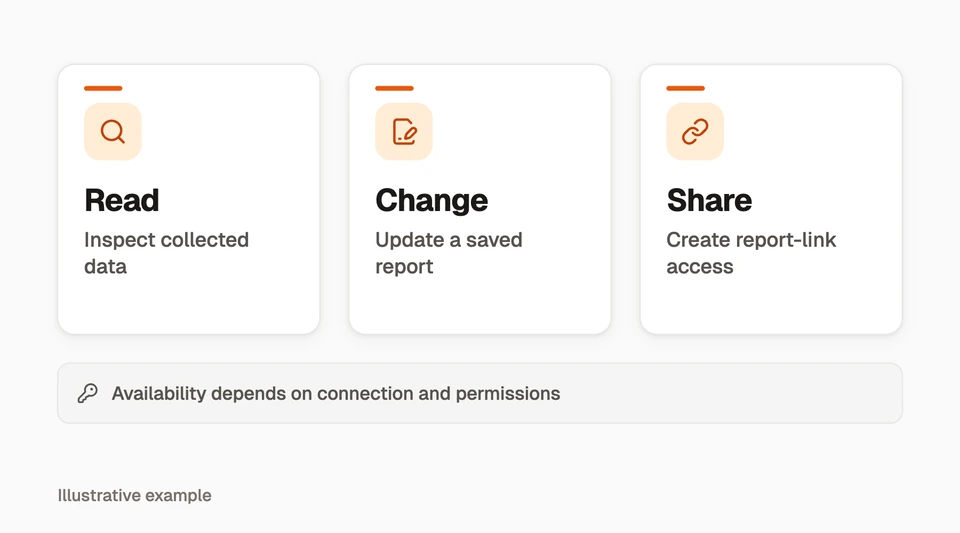
Some settings, drafting, scheduling, and calendar tools currently use the separate single-workspace token connection. They are not included in the newer workspace-grant connection. Check the tool reference before planning a publishing workflow.
- Begin with reporting access for a read-only analysis.
- Review permissions before enabling actions that change or share information.
- Remove access in Linkedlytics Settings → MCP (AI connections) when it is no longer needed.
02
Read and compare your data
Content tools list profiles and posts, rank posts by supported metrics, compare periods or profiles, and inspect collected comments. Audience and report tools expose the corresponding information available in your workspace.
Results can be paginated and time-bounded. An empty response is not proof that no activity occurred; it may reflect selection, permissions, or missing collection.
03
Review before taking action
Writing a report changes a saved resource. Creating a share link exposes selected information outside the workspace. Operating a campaign or sending a reply can affect real people. Those effects deserve different permissions and review.
The newer workspace connection requires operation review for sensitive sharing and campaign actions. A single-workspace token uses its own tool-specific checks. Do not assume that every write has the same confirmation behaviour.
04
Check your tool access
Tools listed here may be hidden from a particular connection or rejected when its user, workspace, profile, or plan does not satisfy the requirements. A tool’s presence does not grant access to another client’s information.
The catalogue documents available registrations in this application version. The tools returned by your authenticated connection are authoritative for that connection.
Questions, answered
Why is a listed tool missing from my AI app?
The connection can filter tools based on its type and permissions. Settings, scheduling, and calendar tools currently use the separate single-workspace token connection. Your AI app may also need to refresh its tool list.
Can a read-only connection send a reply?
No. Sending a reply requires the relevant action permission and product access. Use reporting-only grants when the task only needs analysis.
Connect your AI assistant
Start your Linkedlytics trial, then connect a supported AI assistant to the workspaces and tools you choose.
Start a trial to connect your AI assistant7-day free trial