 Linkedlytics
Grok Bot connection guide
Connect Grok Bot to LinkedIn MCP.
Give Grok Bot the context behind your LinkedIn content. Connect your Linkedlytics workspace, ask what changed and who engaged, and turn a useful analysis into a repeatable reporting task.
By Linkedlytics · Reviewed
01
Before you connect
Start a Linkedlytics trial and connect the LinkedIn profile you want to analyse. You need access to its workspace and collected data, plus a Grok Bot account that can use custom MCP connections. Grok Bot subscriptions and usage are separate from Linkedlytics.
This guide covers the Grok Bot app. Its setup differs from Grok chat on grok.com and the Grok Build coding tool. If your organisation manages plugins, its connector policy must permit the Linkedlytics server.
02
Add Linkedlytics to Grok Bot
Open a conversation with your Bot and ask it to add Linkedlytics as a custom remote MCP server using the request below. Use the hosted HTTPS address; there is no local server to install.
Check the name and server address on the confirmation card before adding it. Follow the authorisation card to sign in to Linkedlytics in your browser, choose the workspaces and reporting capabilities you want to grant, then return to Grok Bot.
Use @ in the conversation to attach Linkedlytics to the task. If you need to reconnect, open Connect apps → Your plugins, find the installed connection, and reopen its authentication action.
Example request
“Add a custom remote MCP server named Linkedlytics at https://www.linkedlytics.com/api/mcp. Use OAuth sign-in and show me the connection details before adding it.”
03
Check the client and profile
Begin by asking Grok Bot which Linkedlytics workspaces it can access. Choose the intended client, then ask for the profiles in that workspace. Use the names or identifiers returned by the connection in your next request.
This first check separates a successful sign-in from a useful data connection. If a workspace or profile is missing, check the account and access you approved before asking for an analysis.
Example request
“Using Linkedlytics, list the workspaces I can access. Ask me to choose one, then list its connected profiles. Read only; do not change or share anything.”
04
Prepare your next client review
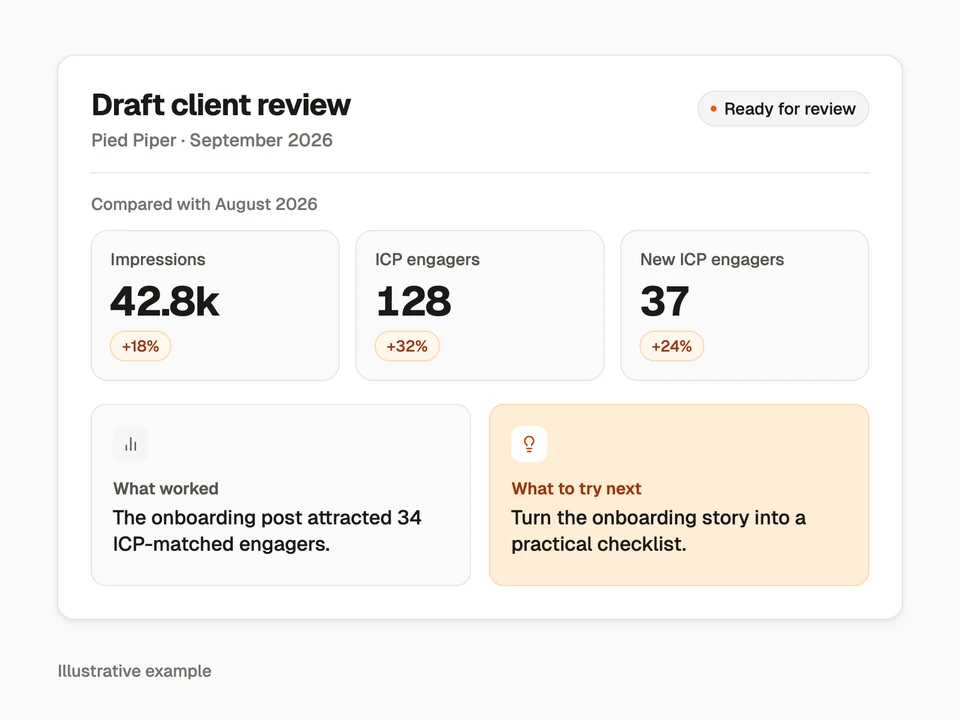
Give Grok Bot a profile, two comparable date ranges, and the question you want to answer. Ask it to connect changes in post performance with the available audience evidence, then draft a short explanation for your review.
Check the underlying posts, metric definitions, and missing data before using the result. Audience fit is a classification to assess, not proof of buying intent. The illustration shows a possible review structure using fictional figures.
Example request
“For [profile] in [workspace], compare [period] with [comparison period]. Show the posts behind the largest changes, review available ICP engagement, and draft three observations with two ideas to test. Flag missing data. Keep the draft here for my review.”
05
Make the review repeatable
Once a one-time review produces a useful result, ask Grok Bot to save the method as a skill. Include the workspace, profile selection, metric definitions, output structure, and checks for incomplete data.
You can then ask the Bot to create a routine. Confirm the schedule, time zone, reporting period, and where the result should appear. Start with a draft delivered to your own conversation. Adding the MCP connection alone does not create a routine.
The routine depends on continued account access, authenticated plugins, and available data. If a run needs approval or cannot collect its inputs, it should tell you rather than silently reuse an earlier result.
Example request
“Save our checked LinkedIn review process as a skill. Propose a Monday-morning routine in my time zone that compares the last two complete weeks and leaves a draft in this conversation. Show me the settings before creating it. Flag missing data and ask before sharing results elsewhere.”
06
Choose the right access
Begin with reporting permissions for analysis. Linkedlytics checks the workspaces and capabilities you approved. Settings, drafting, scheduling, and calendar tools currently use a separate single-workspace token connection; the tools reference explains those differences.
Grok Bot connections are available across your Bots, so a new Bot is not a separate permission boundary. For a Team Bot using OAuth, each teammate signs in with their own account. Keep client selection explicit and review the destination before sharing a report.
07
If the connection needs attention
Check the connection before repeating a task. These are the first places to look:
- Plugin missing or blocked: check Connect apps → Your plugins and your organisation’s connector policy. A team administrator may need to allow the server.
- Sign-in incomplete: reopen the plugin’s authentication action, complete it with the intended Linkedlytics account, and return to Grok Bot.
- Profile or results missing: confirm the workspace, profile, dates, and available collection history. Missing information is not zero activity.
- Routine did not run: check its enabled state, time zone, owning Bot, plugin authentication, and recent run history.
Questions, answered
Can Grok Bot analyse my LinkedIn data through MCP?
Grok Bot supports custom remote MCP servers. With Linkedlytics connected, it can request the tools and collected data available to your authorised workspace. Confirm access with a first read before relying on the reporting workflow.
Is this the same setup as Grok on the web?
No. This guide is for Grok Bot, where you work with Bots, plugins, skills, and routines. Grok chat on grok.com and Grok Build have separate connection flows.
Will it automatically send reports to my clients?
Connecting Linkedlytics does not schedule or send a report. Create and check a draft workflow first. Any routine, sharing destination, or sending action needs its own setup and appropriate access.
Do I need to give the Bot my LinkedIn password?
No. Connect your LinkedIn profile through Linkedlytics, then use the Linkedlytics sign-in flow to authorise the MCP connection. Do not paste passwords or tokens into the Bot conversation.
How do I remove the connection?
Remove the connection or its workspace grants in Linkedlytics Settings → MCP (AI connections), disconnect the plugin in Grok Bot, and pause any routines that depend on it.
Bring your data into Grok Bot
Start your Linkedlytics trial, then follow the setup guide to connect Grok Bot to your authorised workspace data.
Start a trial to set up your Grok Bot connection7-day free trial